How to setup optional skins or similar buy-in event

If your event includes players who are not participating in every leaderboard, you should use Flights to control which leaderboards each player is included in.
A common example is an optional Skins game, where only players who pay an entry fee are included in the skins leaderboard.
Flighting Basics
A general rule for Flights is that they are unique to each leaderboard.
Flights are not only used to group competing players together, but also to determine participation in a leaderboard.
If a player or team is not assigned to a flight, they will not be included in that leaderboard standings and results.
Configure Event to use Flights
If the event is not already configured to use Flights, navigate to Event Settings, scroll to the Flights section, and set Use Flights to Yes.
Set Flights for Opt-In Players
From the Event Home, click the Flights button to access the Flights page.
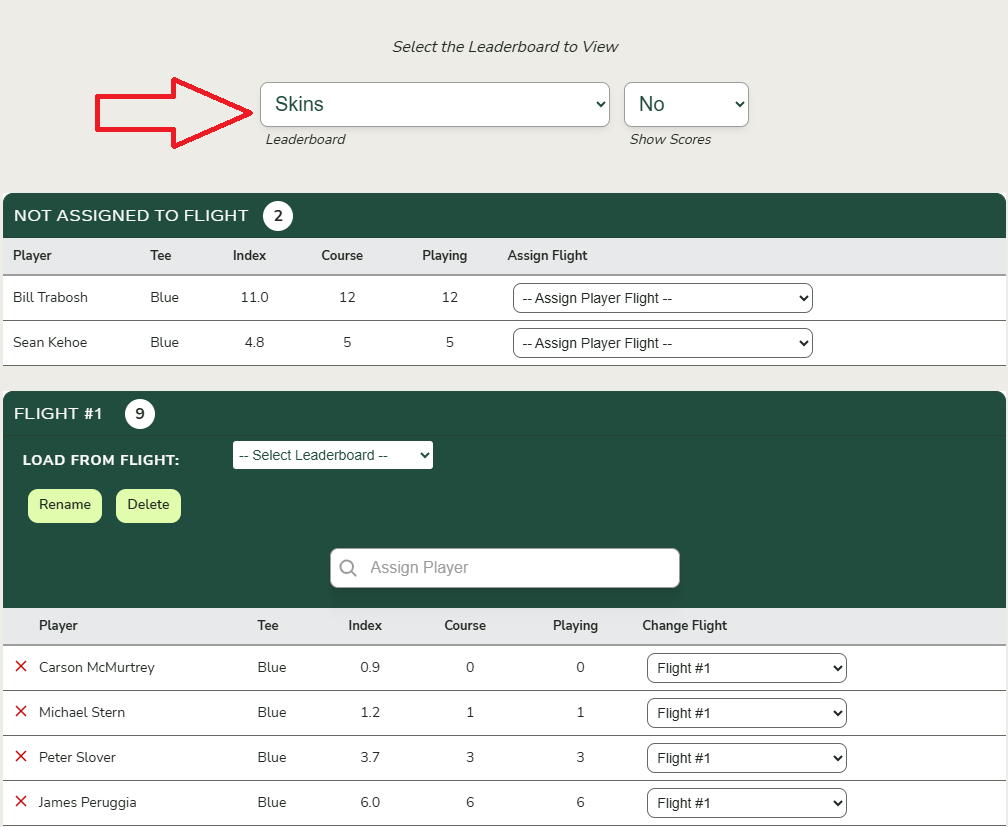
Use the Leaderboard dropdown to select the leaderboard for which you want to define a subset of participating players.
If flights are already displayed with players assigned, remove any players who are not participating by clicking the red “X” next to their name.
If no flights are displayed, click “Create Flight” to create a new flight. Then add only the players who should participate in that leaderboard, leaving non-participating players unassigned.