Communication to players via Email and Text Messages

Communication Hub is the central location for sending email and text messages to your club or community players.
The Communication Hub can be accessed either directly from within an event or from your club or community by using the menu navigation and selecting Admin Settings → Communication Hub.
Communication Hub Home
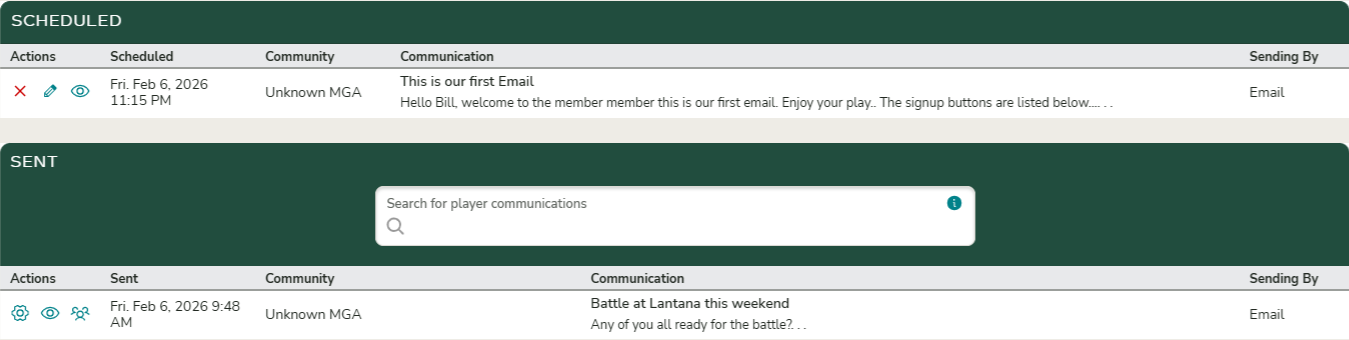
The Communication Hub home page displays all upcoming scheduled communications as well as previously sent communications.
Each communication includes action icons with the following functions:
- Red X – Delete the scheduled communication.
- Pencil – Edit the scheduled communication.
- Eye – Preview the communication (available for email communications only; not supported for text messages).
- Gear – View the configuration details of the sent communication.
- People – View the list of players who received the communication. For email messages, this view also shows the date and time the message was viewed by each player (if available).
Send Communication
On the Communication Hub home page, use the Send New Message button to create a new communication or to open a saved draft for sending.
Communications can be sent via Email or Text Message and may include event-specific information and links. Note: Event links and event details can only be included for one event at a time.
Selecting Recipients
You can send communications to players using the following recipient categories:
- Club Members – All players marked as Members of the club
- Members & Non-Members – All players listed in the club’s Players list
- Select Players – Only players chosen in the Add Additional Players section
- Tagged Players – Players who have the selected tag on their profile
- Event Players – Players registered for the event
- Event Waitlist – Players currently on the event waitlist
- Event Marked Not Paid – Players marked as Not Paid on the event’s registered players page
- Event Pending Payment – Players required to complete online payment after registering via the event questionnaire
- Event Pending Approval – Players awaiting approval after registering via the event questionnaire
In addition to selecting a category, you may manually search for and add individual players from your club or community.
Important: Communications can only be sent to players with an email address or phone number associated with their profile. Messages cannot be sent directly to arbitrary email addresses or phone numbers.
Including Links in Communications
Links included in communications will appear as:
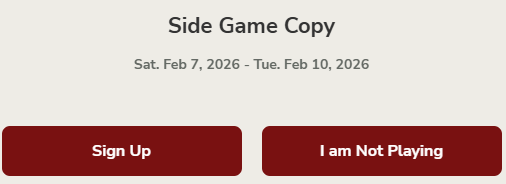
- Buttons in email messages
- URL links in text messages
You may include links to:
- Documents added to the event or the Club/Community
- Custom reports created for the Club/Community
- Event-specific links (when sending an event communication)
Available Event Links
- Sign Up – Register for the event
- Not Playing – Indicate non-participation in the event
- Players List – View the Alpha List printout configured in Print Settings
- Tee Sheet – View the Tee Sheet printout configured in Print Settings
- Teams List – View the Teams List printout configured in Print Settings
- Match List – View the Match Play printout configured in Print Settings
- Live Scoring & Leaderboards – Enter scores or view live leaderboards
- Results – View the Results printout configured in Print Settings
- Explain Handicap – View a detailed explanation of how the player’s handicap was calculated
- Event Home – Navigate to the event’s home page
Unknown Ai
The Enhance feature of Unknown AI reviews your email and provides a slightly more polished version by correcting spelling and grammar.

Delivery Timing
Communications can be sent immediately or scheduled for delivery at a future date and time. When scheduling a message, the Send button will not be shown; instead, saving the communication will schedule it to be sent at the designated time.

Preview
Clicking the Preview button will display a preview of the email to be sent. Please note that this option is only available for email communications.
Branding Emails
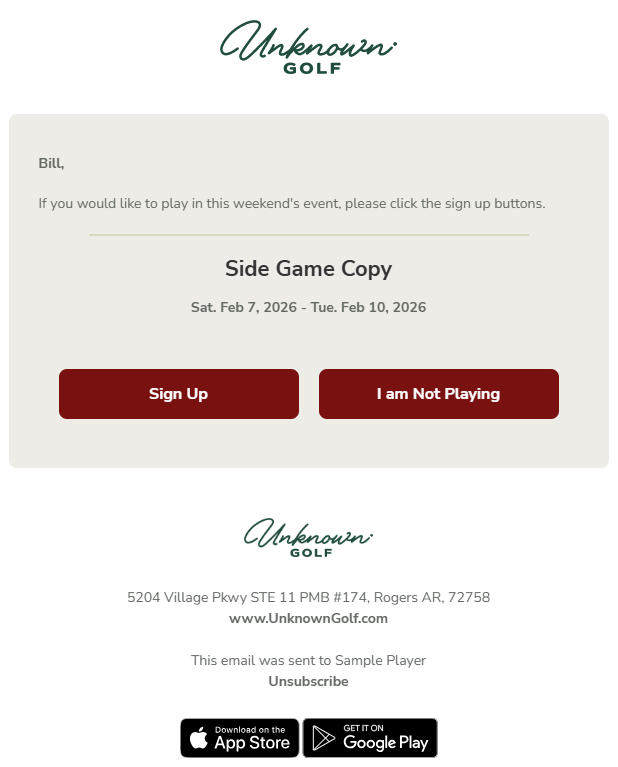
Sent emails can include a logo at the top and buttons styled to match your club or community colors. These settings can be configured in the Club or Community Admin Settings, for additional information reference the help article Community Email Branding
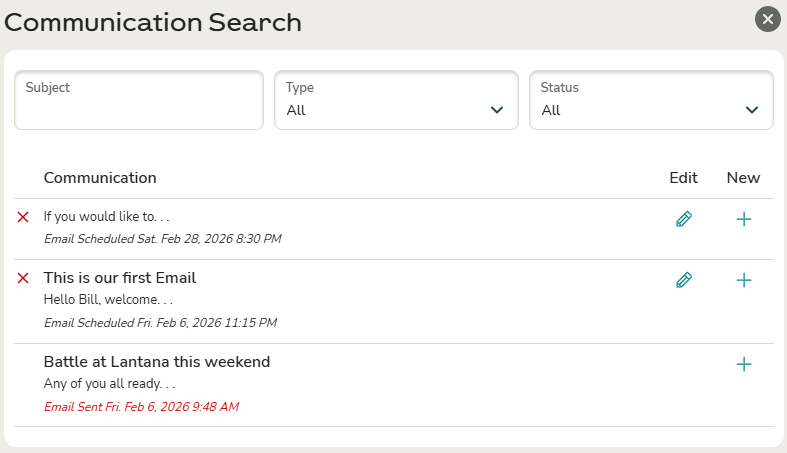
History Sent & Drafts
The history section at the top of the new communication draft allows you to view and search past communications, including sent messages and drafts, which can be edited and sent or copied into a new communication.